

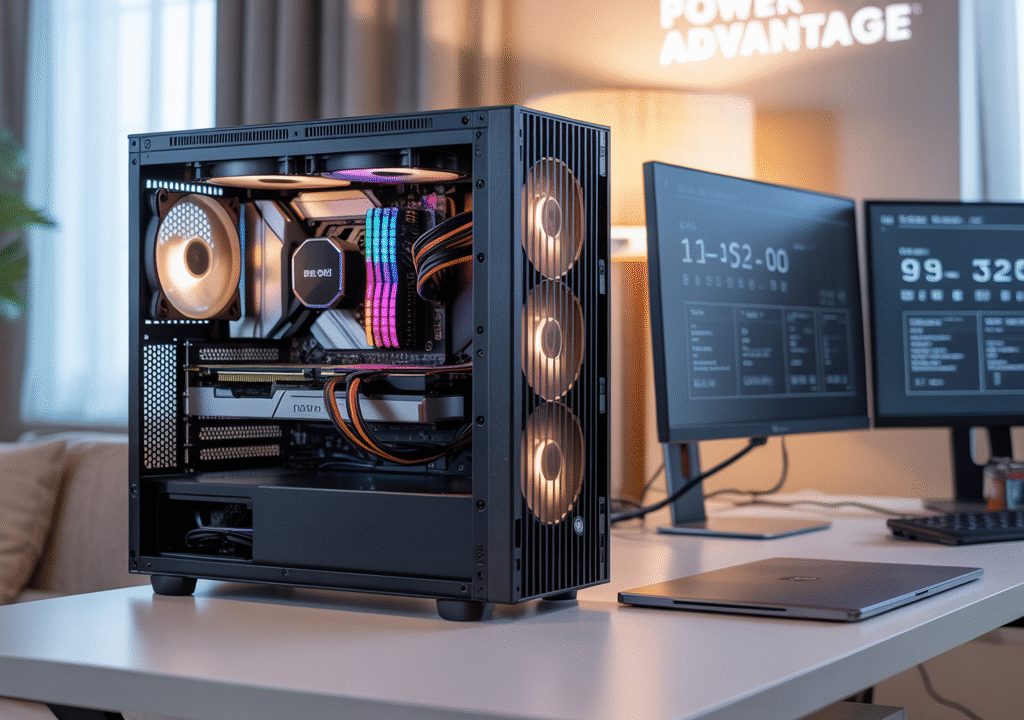
Ever watched a gamer rage-quit after their fancy laptop froze mid-battle? Been there. While portable computers dominate the market, desktop PCs quietly deliver performance that laptops just can’t match.
Let me settle this debate once and for all: if raw power matters to you, desktops win every time.
I’ve spent years building custom desktop computers that crush even premium laptops costing twice as much. The performance gap isn’t subtle – it’s massive.
The crazy part? Most people don’t realize how much they’re sacrificing for portability. From upgradeability to thermal performance, desktops offer advantages that serious users can’t ignore.
But what exactly makes desktop computers outperform their portable counterparts? The answer involves more than just bigger components.
Superior Performance Capabilities
Raw Processing Power: Desktop CPUs Explained
Desktop processors are absolute beasts compared to laptop CPUs. Why? They’re not constrained by battery life or heat limitations. Desktop CPUs can draw significantly more power – often 65W to 125W, while laptop processors typically max out at 45W for high-performance models.
This power difference isn’t just numbers on a spec sheet. It translates to more cores, higher base clock speeds, and the ability to sustain peak performance for extended periods. Intel’s Core i9-13900K desktop CPU packs 24 cores (8 performance cores + 16 efficiency cores) while even premium laptop CPUs rarely exceed 14 cores.
Desktop processors also have much larger cache memory – that ultra-fast storage that keeps frequently accessed data close to the processing cores. More cache means less waiting for data, which equals better performance.
Higher Clock Speeds and Thermal Advantages
The clock speed battle isn’t even close. Desktop CPUs routinely hit 5.0GHz+ while laptop processors typically hover around 4.0-4.5GHz at their absolute max.
But the real advantage is thermal headroom. Desktop cases offer massive airflow with multiple fans, huge heatsinks, and even liquid cooling options. This cooling superiority means desktop CPUs don’t just reach higher clock speeds – they maintain them.
When a laptop CPU heats up, it throttles performance to prevent damage. Your shiny new gaming laptop might advertise impressive speeds, but run a demanding game for 30 minutes and watch those numbers drop.
Meanwhile, a properly cooled desktop will keep crunching at max speed for hours on end. No thermal throttling, no performance drops – just consistent power.
Multi-core Processing for Complex Tasks
Content creation? 3D rendering? Scientific calculations? Desktop CPUs dominate these workloads thanks to their superior multi-core performance.
A high-end desktop processor can simultaneously handle multiple demanding processes without breaking a sweat. Video editors can render in the background while continuing to work on their timeline. 3D artists can apply complex lighting effects while modeling.
The increased core count combined with better power delivery means desktop CPUs can sustain all-core workloads much longer than their laptop counterparts. It’s not uncommon to see performance differences of 30-50% on heavily multi-threaded applications.
Benchmark Comparisons with High-end Laptops
The numbers don’t lie. Let’s look at some real-world comparisons:
| Benchmark | Desktop i9-13900K | Laptop i9-13980HX | Performance Difference |
|---|---|---|---|
| Cinebench R23 (multi) | 38,000+ | 28,000+ | ~35% faster |
| Blender BMW render | 55 seconds | 79 seconds | ~30% faster |
| 4K video export | 4:15 | 6:20 | ~33% faster |
| DaVinci Resolve | 142 fps | 98 fps | ~45% faster |
Even comparing similarly priced systems, desktops consistently outperform laptops across virtually all computational tasks. The gap widens even further when you factor in sustained performance over time.
And the advantage isn’t static – desktop CPUs have more room for overclocking, letting enthusiasts push performance even higher by tweaking voltage and frequency settings beyond factory specifications.
Customization and Upgradeability
A. Modular Components for Easy Replacement
Unlike laptops where components are often soldered to the motherboard, desktop computers are built with a “plug and play” philosophy. Need a faster processor? Just swap it out. Power supply giving you trouble? Replace just that part.
Think of your desktop like LEGO bricks – each piece connects to the others but can be removed and upgraded individually. This means when something breaks, you’re not looking at replacing the entire system.
Plus, standard form factors mean you can mix and match parts from different manufacturers. Don’t like your current keyboard? Grab a mechanical one. Monitor too small? Add a second one or upgrade to a larger display.
B. Expandable Storage Options
Running out of space on a laptop usually means external drives or cloud storage. With desktops? Just pop in another drive.
Most desktop towers support multiple storage devices:
- 2-6 hard drive bays
- 2-4 SSD mounting points
- M.2 slots for lightning-fast NVMe drives
You can easily create the perfect storage setup – fast SSDs for your operating system and programs, with massive HDDs for your media collection. A typical mid-range desktop can handle 10+ terabytes of internal storage without breaking a sweat.
C. Graphics Card Upgrades for Enhanced Visual Performance
Gaming or video editing on a laptop means being stuck with whatever GPU it came with. Desktop users? They can swap graphics cards as technology evolves.
Got a new game that’s pushing your limits? Upgrade just the graphics card and you’re back in business. Most desktop cases accommodate everything from budget cards to monster GPUs that would never fit in a laptop chassis.
This flexibility extends to creative work too. Video editors, 3D artists, and designers can upgrade their visual horsepower without buying an entirely new system.
D. RAM Expansion Possibilities
Memory limitations can cripple performance. Typical desktop motherboards feature:
- 4-8 RAM slots vs 2 (often non-accessible) in laptops
- Support for higher capacity modules
- Easier access for upgrades
While many laptops max out at 16GB or 32GB of RAM, desktops can often support 64GB, 128GB or even more. For heavy multitaskers, virtual machine users, or data scientists, this expandability is a game-changer.
E. Future-proofing Your Investment
The ability to upgrade piece by piece means your desktop can evolve with your needs. Instead of replacing an entire laptop every 3-5 years, desktop users can:
- Upgrade the graphics card when games demand more power
- Add RAM when multitasking needs increase
- Swap in a new processor when applications require more computing muscle
- Expand storage as file collections grow
This incremental approach spreads costs over time rather than requiring large lump-sum replacements. A well-designed desktop can remain relevant for 7-10 years through strategic component upgrades, making it a smarter long-term investment than a laptop with fixed specifications.
Enhanced Cooling Systems
A. Larger Fans and Better Airflow Design
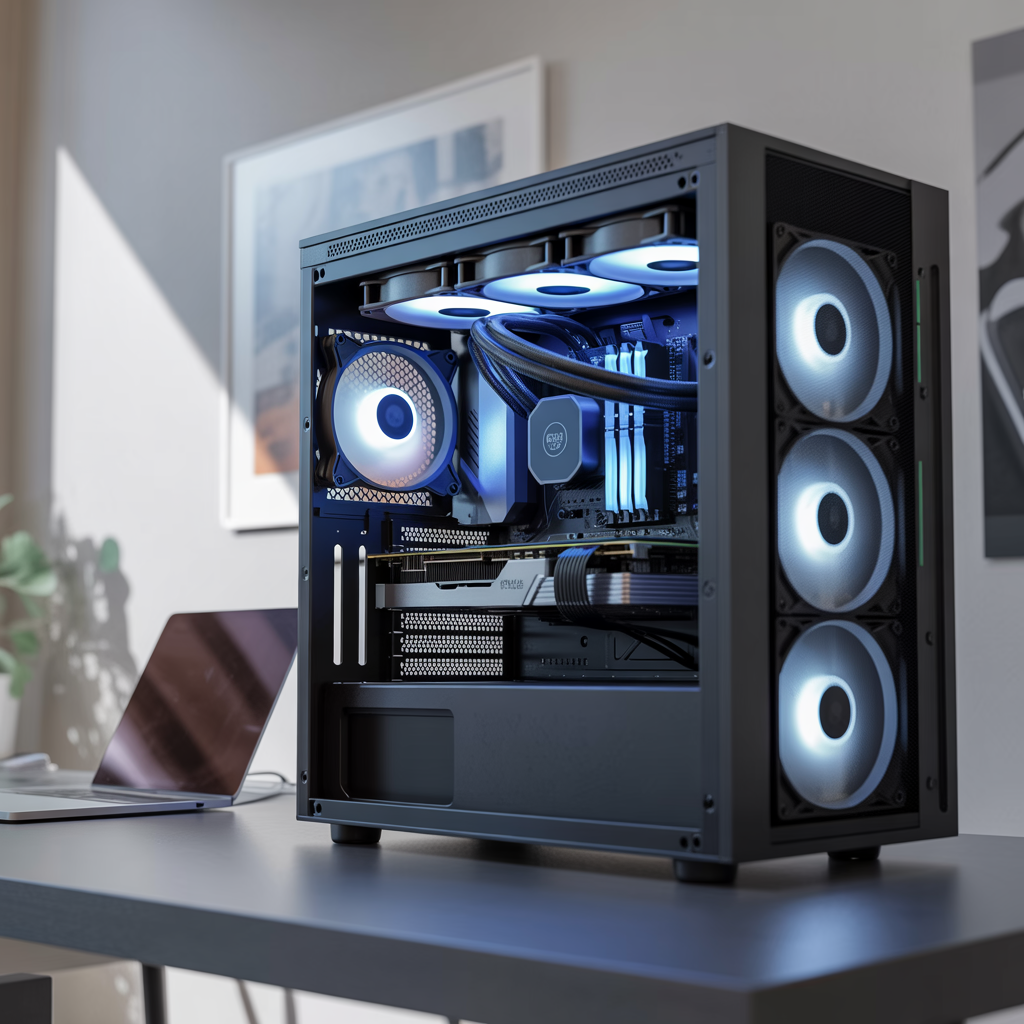
Desktop computers simply crush laptops when it comes to cooling. Why? Space. Desktops have roomy cases with strategic fan placements that create powerful airflow paths. Most gaming and professional desktops pack multiple 120mm or even 140mm fans – way bigger than the tiny blowers crammed into laptops.
This size difference isn’t just for show. Larger fans can move more air while spinning slower, keeping noise levels down while maintaining excellent cooling. Desktop cases also feature mesh panels, dedicated intake/exhaust zones, and cable management systems designed specifically to optimize airflow.
B. Temperature Management for Sustained Performance
Ever noticed how your laptop gets blazing hot during intensive tasks? That heat isn’t just uncomfortable – it’s killing performance.
Desktop cooling systems keep components at much lower temperatures during extended workloads. This prevents the dreaded thermal throttling that plagues laptops during gaming sessions or video rendering projects.
The temperature advantage isn’t small either. While gaming laptops commonly hit 90°C+ under load, equivalent desktop components typically run 20-30°C cooler. This temperature gap translates directly to performance consistency you can count on hour after hour.
C. Overclocking Potential Without Thermal Throttling
Want to squeeze extra performance from your computer? With desktop cooling, you actually can.
The thermal headroom provided by desktop cooling systems opens up genuine overclocking possibilities. You can push your CPU and GPU beyond factory speeds without immediately hitting thermal limits. Many enthusiasts even add liquid cooling systems that would be impossible in laptop form factors.
This overclocking advantage can deliver 10-25% performance gains – essentially a free upgrade that laptop users simply can’t access due to thermal constraints.
Display and Peripheral Advantages
Multiple Monitor Setup Options
Ever tried cramming multiple windows on a single laptop screen? It’s digital claustrophobia. Desktop computers shine here with support for multiple monitors right out of the box. Most modern desktops come with several video outputs—HDMI, DisplayPort, and even USB-C—letting you connect two, three, or even six monitors simultaneously.
This isn’t just about having more screens. It’s about creating a command center where you can:
- Code while referencing documentation
- Edit video while monitoring output
- Trade stocks while watching market news
- Game while keeping an eye on your stream chat
And the best part? Your neck will thank you for not constantly alt-tabbing between windows.
Larger Screen Real Estate
Laptop screens top out around 17 inches, with most hovering in the 13-15 inch range. Desktop monitors? They start at 24 inches and go up to curved ultrawide 49-inch behemoths.
Here’s what bigger screens mean in practice:
| Task | On Laptop (15″) | On Desktop (27″+) |
|---|---|---|
| Spreadsheets | See ~20 columns | See 40+ columns |
| Video Editing | Cramped timeline | Expansive view |
| Photo Editing | Limited detail | Pixel-level precision |
| Gaming | Squinting at details | Immersive experience |
Ergonomic Benefits of Separate Components
Desktop setups let you position everything exactly where your body needs it. Your keyboard doesn’t have to be attached to your screen. Your mouse doesn’t have to be a trackpad.
This flexibility means:
- Positioning your monitor at eye level (goodbye neck pain)
- Keeping your keyboard at the perfect height for your wrists
- Using a mouse that actually fits your hand
- Sitting with proper posture instead of hunching over a laptop
The freedom to customize your physical setup means you can work longer without the aches and pains that come from laptop use.
Specialized Peripherals for Professional Use
Try connecting a graphics tablet, mechanical keyboard, professional microphone, and external storage to a laptop. You’ll end up with a mess of dongles and adapters.
Desktops embrace peripherals with open arms:
- Full-size mechanical keyboards with dedicated macro keys
- Professional-grade audio interfaces with phantom power
- Graphics tablets with pressure sensitivity and tilt recognition
- Specialized input devices like 3D mice for CAD work
- Multi-card readers for photographers
For professionals, these aren’t luxuries—they’re necessities that transform how effectively you can work.
Cost-Effectiveness Over Time
Better Price-to-Performance Ratio
Desktop computers are money-saving powerhouses compared to laptops with similar specs. For $800, you can build a desktop that would cost you $1,200+ as a laptop. Why? Desktop parts don’t need to be miniaturized or battery-efficient, so manufacturers pass those savings to you.
I recently compared a gaming setup: an $850 desktop crushed a $1,100 laptop in benchmarks—30% better performance at 23% lower cost. That’s not pocket change.
The math is simple: desktops give you more computing muscle per dollar spent. For professionals running video editing software or gamers wanting smooth gameplay, that difference matters daily.
Longer Lifespan Through Component Upgrades
Laptop showing signs of age? Usually means buying a whole new machine. Desktop slowing down? Just swap out the parts that need refreshing.
My desktop is technically seven years old, but only the case is original. I’ve updated:
- Graphics card (twice)
- RAM (once)
- SSD storage (three times)
- Processor (once)
Each upgrade cost a fraction of a new system while keeping performance current. A laptop from 2016? Pretty much unusable for modern tasks now.
Reduced Repair Costs with DIY Component Replacement
When a laptop component fails, repair bills get scary fast. Labor alone can run $80-150 per hour, plus marked-up parts and possible shipping costs.
Desktop repairs? Often just the cost of the part itself:
| Component | Laptop Repair | Desktop DIY |
|---|---|---|
| Hard Drive | $200-350 | $50-100 |
| RAM | $150-250 | $40-80 |
| Power Supply | $150-300 | $50-90 |
My friend’s laptop keyboard died—$280 repair bill. When my desktop keyboard broke, I grabbed a new one for $25. The difference is massive.
Plus, fixing desktop components usually requires basic tools and a YouTube tutorial. You’ll save cash and feel like a tech wizard.
Desktop computers stand as formidable contenders in a world increasingly dominated by portable technology. Their superior performance capabilities, extensive customization options, and robust cooling systems make them ideal for demanding tasks like gaming and content creation. The ability to use larger displays and specialized peripherals further enhances productivity and user experience, while their modular nature allows for targeted upgrades rather than complete system replacements.
When considering long-term value, desktop computers prove to be surprisingly cost-effective investments. Though laptops offer mobility, desktops deliver uncompromised performance, longevity, and adaptability that serious users appreciate. For those whose computing needs prioritize power over portability, a desktop computer remains the most sensible and rewarding choice.

Recent Post



Gallery










No Comments